
Knowledge Base
Teach your assistant everything about your business — services, prices, hours, location, and much more.
Knowledge Base
The Knowledge Base is where you teach your assistant everything about your business. This is where you add the services you offer, prices, address, hours, payment methods — any information a customer might ask about.
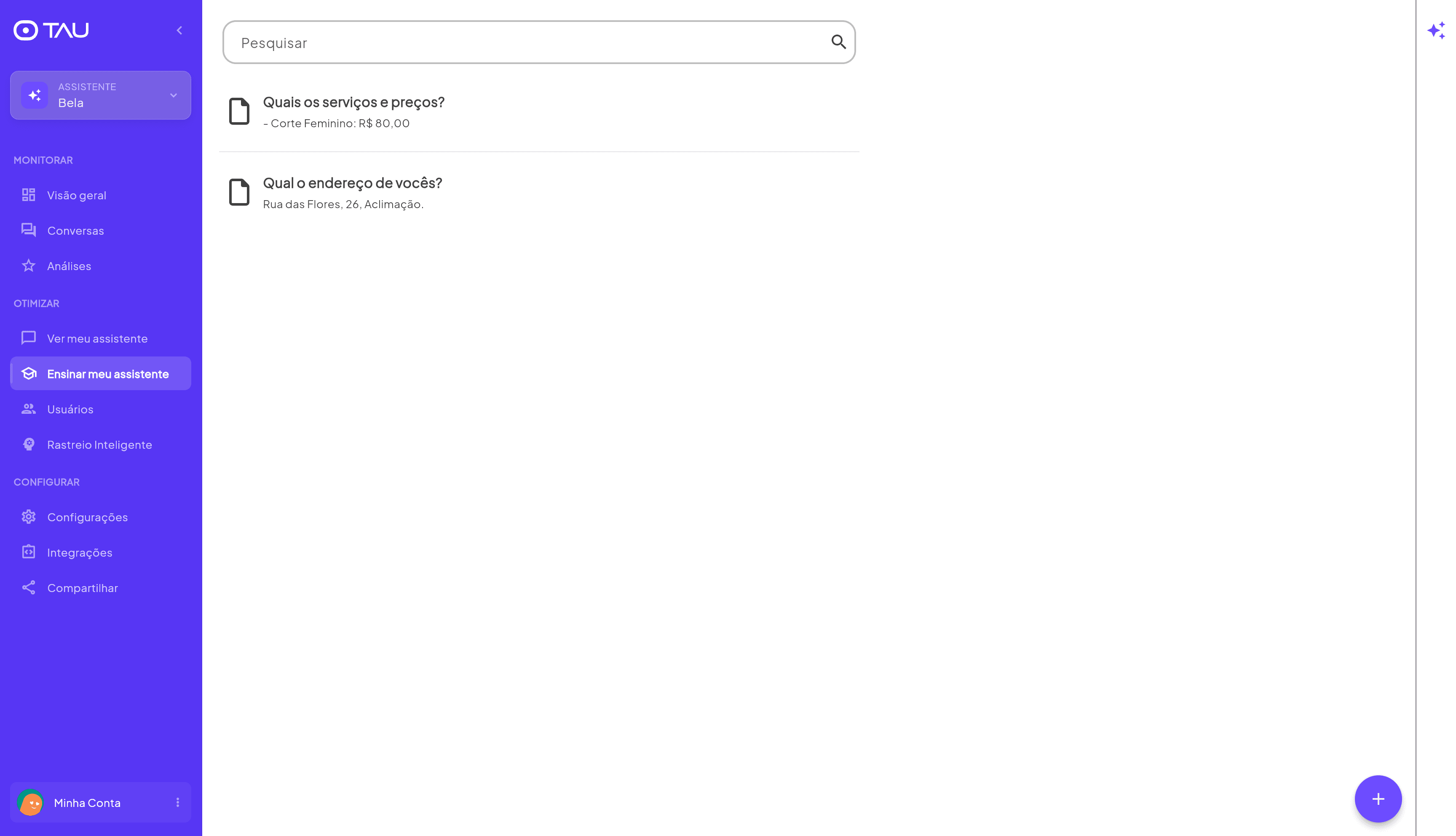
Access it from the sidebar under Optimize → Teach my assistant.
Knowledge Base or Situations?
Before adding content, it's worth understanding when to use each tool — because both teach the assistant, but in different ways.
Think of a new salesperson you just hired. You give them two resources:
- A catalog — they don't memorize everything, but look it up when a customer asks about a specific product.
- Training — some rules they need to have in their head at all times, without looking anything up: how to introduce themselves, what to do when the customer asks for a discount, how to act when someone wants to cancel.
TAU works the same way:
| Knowledge Base | Situations | |
|---|---|---|
| It's like... | The catalog | The training |
| The assistant... | Looks it up when the customer asks something specific | Follows it always, in every conversation |
| Use for... | Services, prices, address, hours, FAQs | Sales scripts, discount rules, handling complaints |
How it works
Think of the Knowledge Base as your business manual for the assistant. When a customer asks a question — "What's the price of laser hair removal?" — the assistant looks up the Knowledge Base to answer. If the information is there, it responds immediately. If not, it transfers to your team.
That's why the more complete the Knowledge Base, the fewer questions reach you.
Start with the most frequently asked questions you already receive — via WhatsApp, phone, or in person. Those are exactly the ones the assistant will handle for you.
Adding content
Click the + button in the bottom right corner to add a new item. You have 5 ways to feed the Knowledge Base:
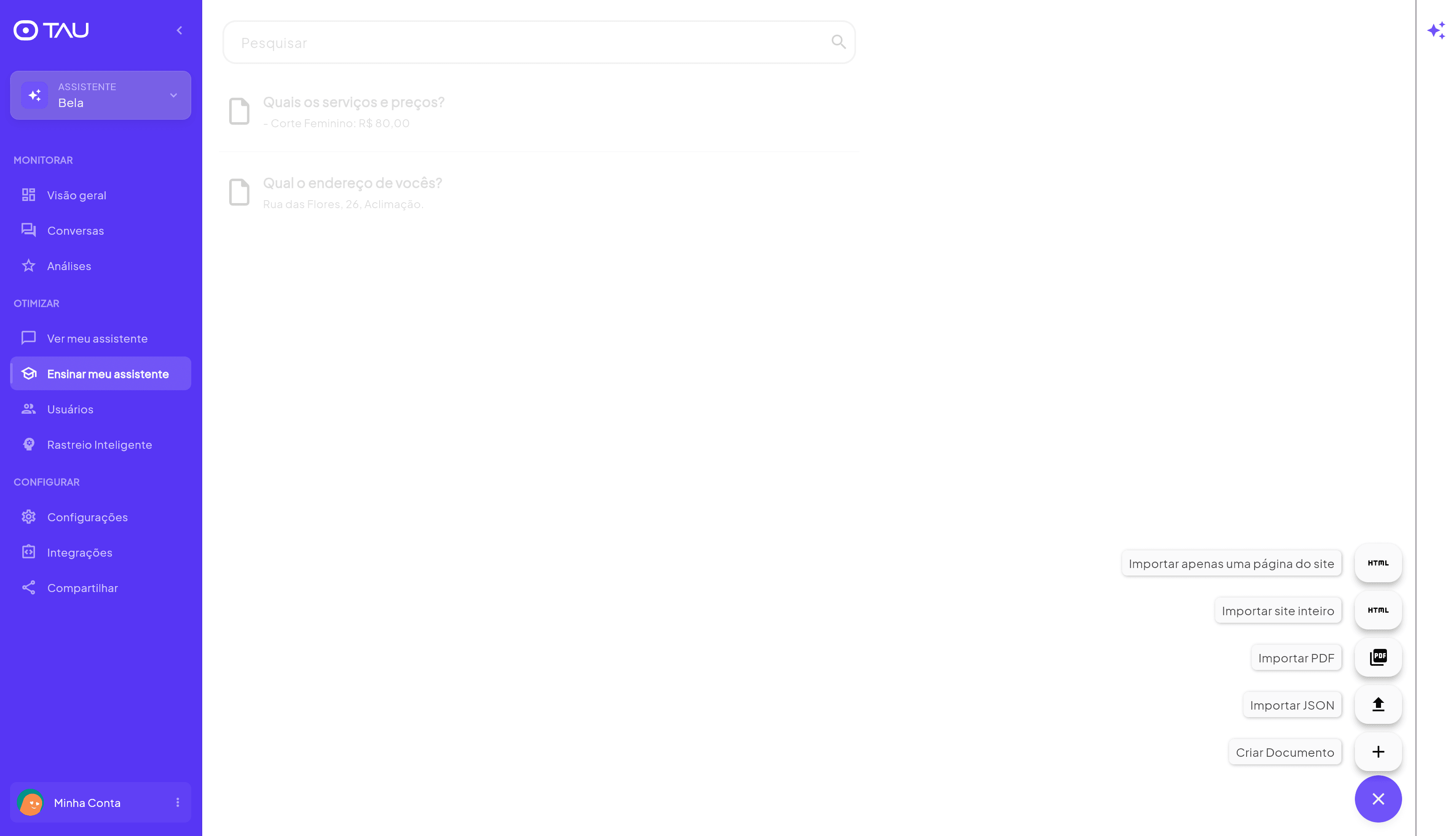
✏️ Create Document
Write directly in the editor. Give the question or topic a title (e.g. "What are the services and prices?") and write the answer in the document body.
The editor supports rich formatting: bold, italic, lists, tables, links, images, videos, audio, and attached documents.
📄 Import PDF
Upload a PDF file — menus, price lists, manuals, contracts. The assistant will read and extract the information automatically.
🌐 Import a page from your website
Enter the URL of a specific page on your site (e.g. the services or contact page). The assistant imports the content from that page.
🌐 Import entire website
Enter your site's main URL and the assistant will index all pages automatically — ideal for those who already have a complete website with all the information.
📦 Import JSON
For those with large volumes of structured data (e.g. product catalogs exported from a system). Accepts .json and .jsonl formats.
Editing an item
Click any item in the list to open the editor. You can:
- Change the title and content
- Format the text (lists, bold, tables, links)
- Insert images, videos, or documents as supplements
- Delete the item if it's no longer needed
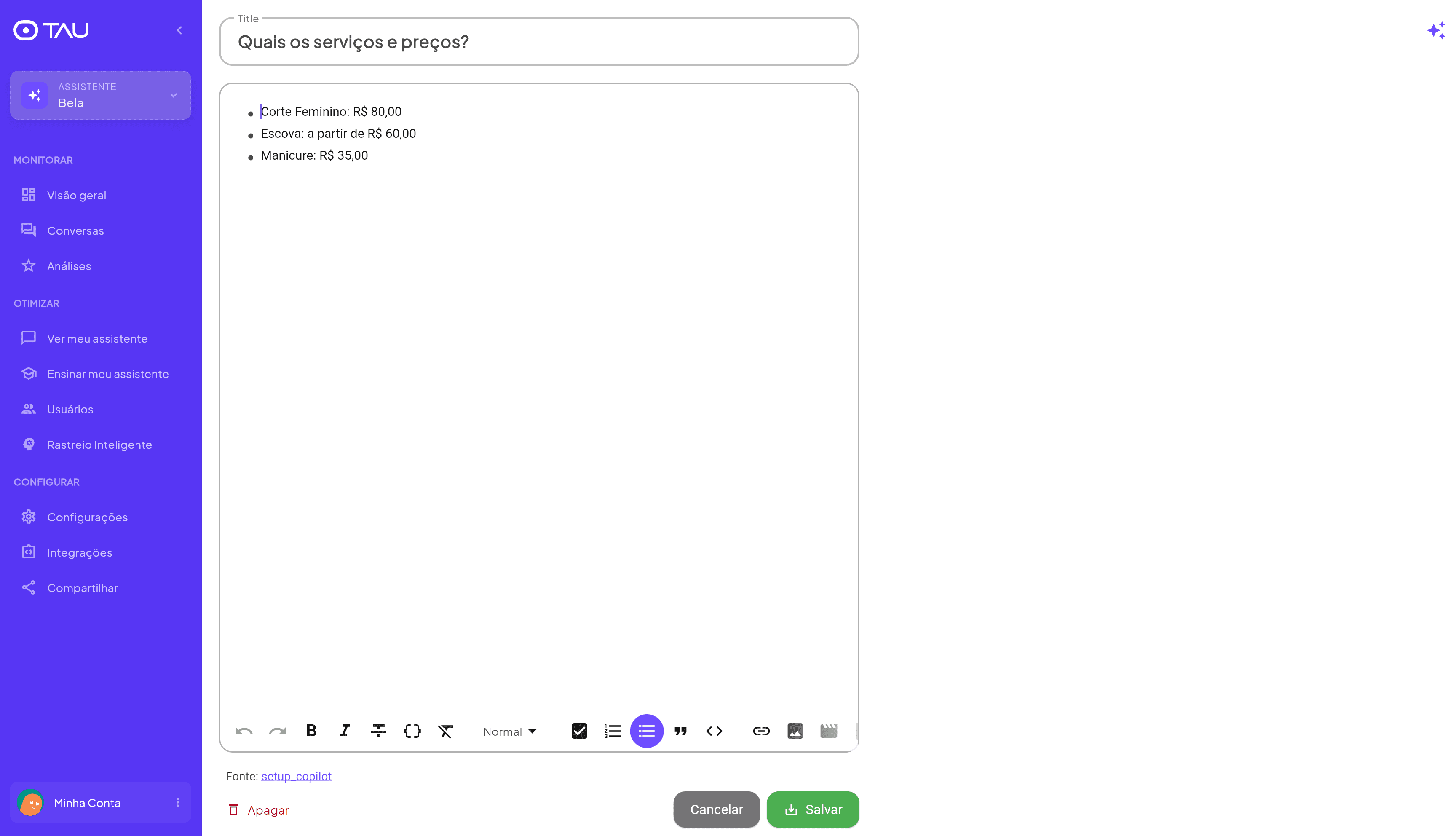
Click Save to confirm the changes. Changes take effect immediately — the assistant starts using the updated content right away.
What to include in the Knowledge Base
The more complete, the better. Some suggestions for what to add:
| Category | Examples |
|---|---|
| Services | What you offer, how each service works |
| Prices | Price list, packages, promotions |
| Hours | Operating days and times |
| Location | Full address, landmarks, directions |
| Payment | Accepted methods (card, Pix, cash, installments) |
| Scheduling | How to book, lead time, cancellation policy |
| Team | Available professionals, specialties |
| FAQs | Any question you've already received more than once |
It doesn't need to be perfect from the start. Add the basics first, put the assistant to work, and see which questions it can't answer. Those gaps show you exactly what to add next.
Search
Use the Search bar at the top to find a specific item in the Knowledge Base. Useful when the list grows and you need to edit existing content.