
Conversations
Monitor all your assistant's conversations in real time, step in when needed, and learn more about each contact.
Conversations
The Conversations screen is the operations center of your service. This is where you see everything that's happening — customer questions, assistant responses, and cases that need your attention.
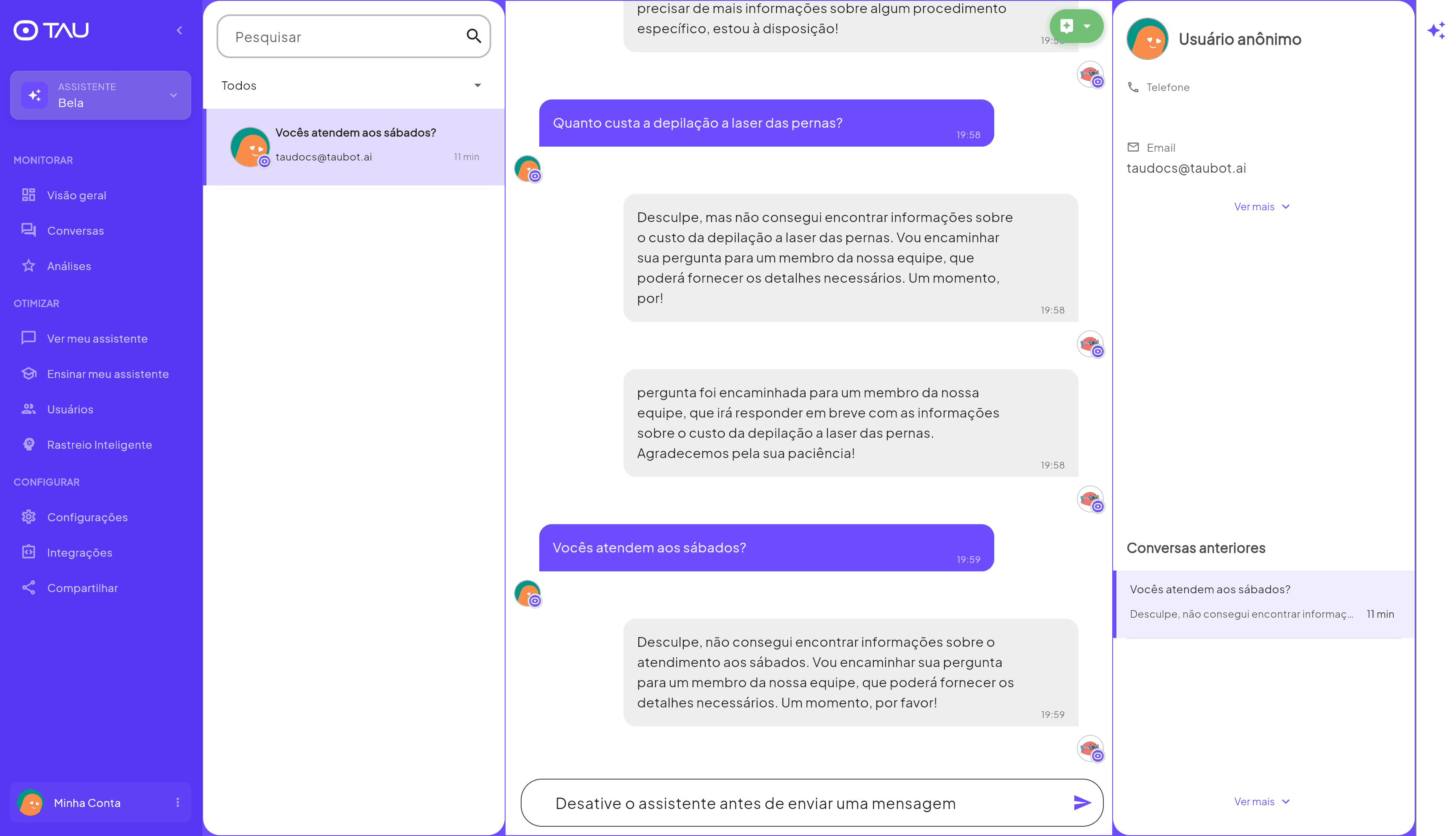
The layout has three columns:
- Left — list of all conversations
- Center — full history of the selected conversation
- Right — contact information and previous interaction history
Conversation list
Each conversation in the list shows a preview of the last message, the contact, and when it happened. Use the search bar at the top to find a conversation by name, email, phone number, or message snippet.
Status filters
Use the All filter to segment conversations by status:
| Filter | What it shows |
|---|---|
| All | All conversations, regardless of status |
| Open | Ongoing conversations — the assistant is actively responding |
| Closed | Ended conversations |
| Transferred | Conversations handed off to a human agent |
| Selected | Shows only the currently open conversation |
Filter by Transferred daily to make sure no customer goes unanswered. Every transferred conversation is a customer who needed you — and is waiting.
Conversation history
Clicking a conversation opens the full history in the center of the screen: customer messages (on the right, in purple) and assistant responses (on the left, in gray).
Per-conversation assistant control
At the top of the chat you'll find the assistant control button — it has 3 states:
| State | What it means |
|---|---|
| 🟢 Assistant Active | The assistant is responding normally in this conversation |
| 🟠 Assistant Paused | The assistant has been paused — you can take over and type directly |
| 🔴 User Blocked | The user can no longer interact with the assistant |
To take over a conversation manually, pause the assistant and use the message field to reply directly to the customer. When you're done, reactivate the assistant so it resumes responding.
Pause the assistant for more sensitive cases — unhappy customers, price negotiations, situations that require a human touch. After resolving, reactivate and the assistant picks up from where it left off.
Control from WhatsApp Business too
For operations using WhatsApp Lite, TAU can also mirror these states into WhatsApp Business Lists. This lets the team see directly in WhatsApp who is waiting for human service, who has the assistant paused, and who is blocked.
Read the full guide in WhatsApp Lists.
Contact panel
The right column displays information the assistant collected from the customer during the conversation:
- Phone — click to copy
- Email — click to copy
- See more — expands additional data such as external identifier and chat ID
- Previous conversations — history of all past interactions this same contact had with your assistant
The previous conversation history is especially useful for understanding the context of a returning contact: what they asked before, what went unanswered, whether there was a previous handoff.
What to watch for in conversations
Reviewing conversations regularly is one of the most effective ways to improve your assistant and identify sales opportunities:
- Unanswered questions → did the assistant say "I couldn't find information"? Add that content to the Knowledge Base
- Recurring questions about price or hours → make sure that information is in the Knowledge Base
- Frequently transferred conversations → check the handoff trigger in Settings
- Leads that started but didn't follow through → enable automatic follow-up to re-engage them
Set aside 10 minutes a day to review the previous day's conversations. Over time, you'll identify patterns and the assistant will improve significantly.